
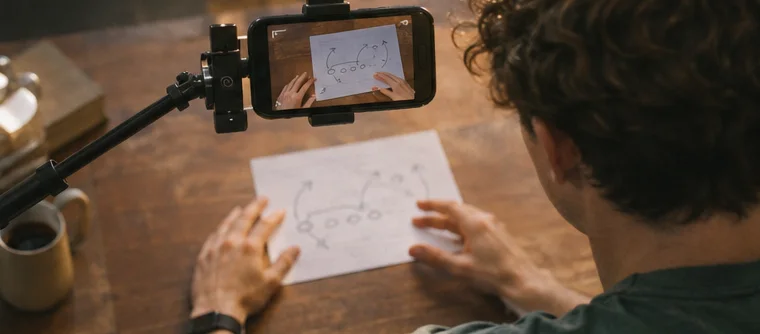
Faceless YouTube means the presenter stays off camera while the video teaches through a screen recording, hands, diagrams or original footage. For marketers, it can be a straightforward way to show a page, explain a tool or demonstrate a small task. Start with something a viewer can see working by the end.
Choose a faceless YouTube task worth showing
A good first video has a visible before and after. An empty page becomes a working sign-up form. A draft message becomes an email in your test inbox. A blank sheet becomes a three-step traffic plan. You can show the result in one shot and explain the steps in order. Pick something you have done before or can verify now.
Write down who is watching and what they want to complete. If the viewer is starting their first list, explain what a confirmation message does. If they already have a list, spend more time on the part they are trying to fix. Search your topic and read a few questions viewers ask. You may discover a missing step that is more useful than an overview.
Choose a recording style you can repeat
A screen recording works when the audience needs to see a click. A hands-only shot fits a worksheet, sketch or small physical task. A slide can show one concept before you demonstrate it. Choose one main format so the recording is easier to edit. Prepare a test environment with no real names or account details.
If you narrate, use a short outline instead of reading a long paragraph. Speak in the order the viewer sees the actions. Pause briefly when you need them to read a label. If you prefer no voice, use readable captions and let each instruction stay long enough to read. Play the first test recording on your phone with sound off.
Make a five-part shot plan
- Open with the finished result and say what the viewer will learn.
- Show the starting screen and mention any account, file or tool the viewer needs.
- Record the main actions in order. Pause briefly after each click so the viewer can see what changed.
- Show one common mistake and its repair if you can demonstrate it safely.
- Finish by checking the result. Offer one relevant next step in the description or on the last screen.
Aim for the length the task needs. YouTube’s official Help explains current Shorts formats and upload steps. A Short can show one move. A longer demo makes sense when you need to show the handoff from one screen to another. Think about what the viewer can read on a small screen. Zoom the browser or crop the recording around the action where helpful.
Record a first version without exposing your accounts
Close messaging tabs and silence notifications. Use a separate test profile or a private tab where you can. Replace addresses and names with fictional examples. Look for private data in the browser bar, file names and any open list of subscribers. Do a five-second recording and watch it before the full take.
Record in small pieces. If you make a mistake at the third step, restart from the previous useful view. You can join the clips after. Keep the pointer visible when it matters. If a button is off screen, show how you reached it. Capture a view of the result that confirms the action worked, such as the public page appearing or a test message arriving.
Edit and publish so the video can be used
Cut the parts where nothing useful happens. Put the action and explanation close together. Check captions for tool names and punctuation. Add a title that says what the viewer can do. A thumbnail is the small preview image for the video. It should make the task clear without making a promise the video can’t keep.
Write a short description with the starting materials, the result and one related resource. If you include an affiliate link, say plainly that you may earn a commission and put the disclosure near the link. Use footage, music and graphics you made or have permission to use. Save project files and check that the published version plays and that the links reach the pages you intended.
A sample short for a beginner list
Imagine your video shows a signup page test. The opening shot is a test email with a visible subject that uses made-up details. Then show the published form, enter a fictional example on screen and switch to a real test account with private details hidden. Show the confirmation and download in order. End with a single instruction: try it from a phone before sharing the link.
If you need to show where the subscriber appears inside your email provider, cover real addresses or use a clean test list. The viewer can see the status change without seeing private data. Keep the labels at a size a phone user can read. Ask a test viewer to explain which email they should open first. Their answer tells you whether the recording made the process clear.
Read early feedback and make the second video
Look at comments for confusion about steps, tool versions or what “done” looks like. If somebody asks where a menu moved, answer and update the description if your video now needs an extra detail. If people watch the beginning but leave before the first action, review how long the introduction takes. Choose one improvement to test in the next recording.
A pair of videos can teach the same task at different lengths. Use a Short to show what success looks like. Use a longer video to show the full process. Link related pieces where the platform supports it, and give each one enough information to be useful by itself.
Common fouls in a first faceless recording
- Recording the whole desktop when the only important thing is one small box.
- Leaving old notifications, names or email addresses visible.
- Using a generic voiceover that never matches the click on screen.
- Making a title that promises a result the video does not show.
- Reusing footage or audio without checking its permission.
Plan an edit with a short shot log
Make a sheet with four columns: clip, action, what the viewer should see and what needs checking. For a signup test, clip one could be the working confirmation screen. Clip two could show entering an address. Clip three could show opening the confirmation message. In the check column, note every point where private information might appear. Use test accounts or crop that region while keeping the action legible.
Once you have the shots, play the first version straight through. Put a mark beside any point where your narration refers to a button the viewer cannot see. Move the image or narration so they match. Add a caption where an important label is hard to read. If a clip contains two actions and the second goes by too quickly, give it a separate beat. View the edited version on a phone before upload.
Check your published version as a viewer
Open the watch page while signed out if the visibility setting permits it. Look at the title, thumbnail and first moments. They should describe the same task. Tap the relevant link in the description and confirm it reaches the page you intended. Turn captions on and read through the part with a tool name or URL. Fix any transcription that changes the meaning. Check that the last shot shows the result, not just a cursor leaving the screen.
Write a short companion note if a viewer needs more than the video can show. Include the starting materials, the sequence of actions and a way to verify success. Link between the note and video where they help each other. If an interface changes, update the companion note or description. For a major change, record a short correction and link to it so people know which version they are looking at.
Keep a copy of the script, raw clips and final export. Save a note about the date and the tool version you showed. That makes a later update easier than trying to reconstruct the recording from memory.
FAQ
Can I make the video without talking?
Yes. Use clear shots and readable text or captions. Let the viewer see what changes after each action.
Should I begin with Shorts?
Use the format that fits the task. A short demo can show one click or check. Give longer tasks room to breathe.
Do I need editing software that costs money?
Start with recording and trimming tools you already have. Upgrade when you can name a feature that your work actually needs.